A design is one ShowPage: a mobile-first page made of an Avatar Box (the header) and a list of blocks (the content). An account can keep several designs, but only one is Active — the one visitors see at /@username.
The Designs page
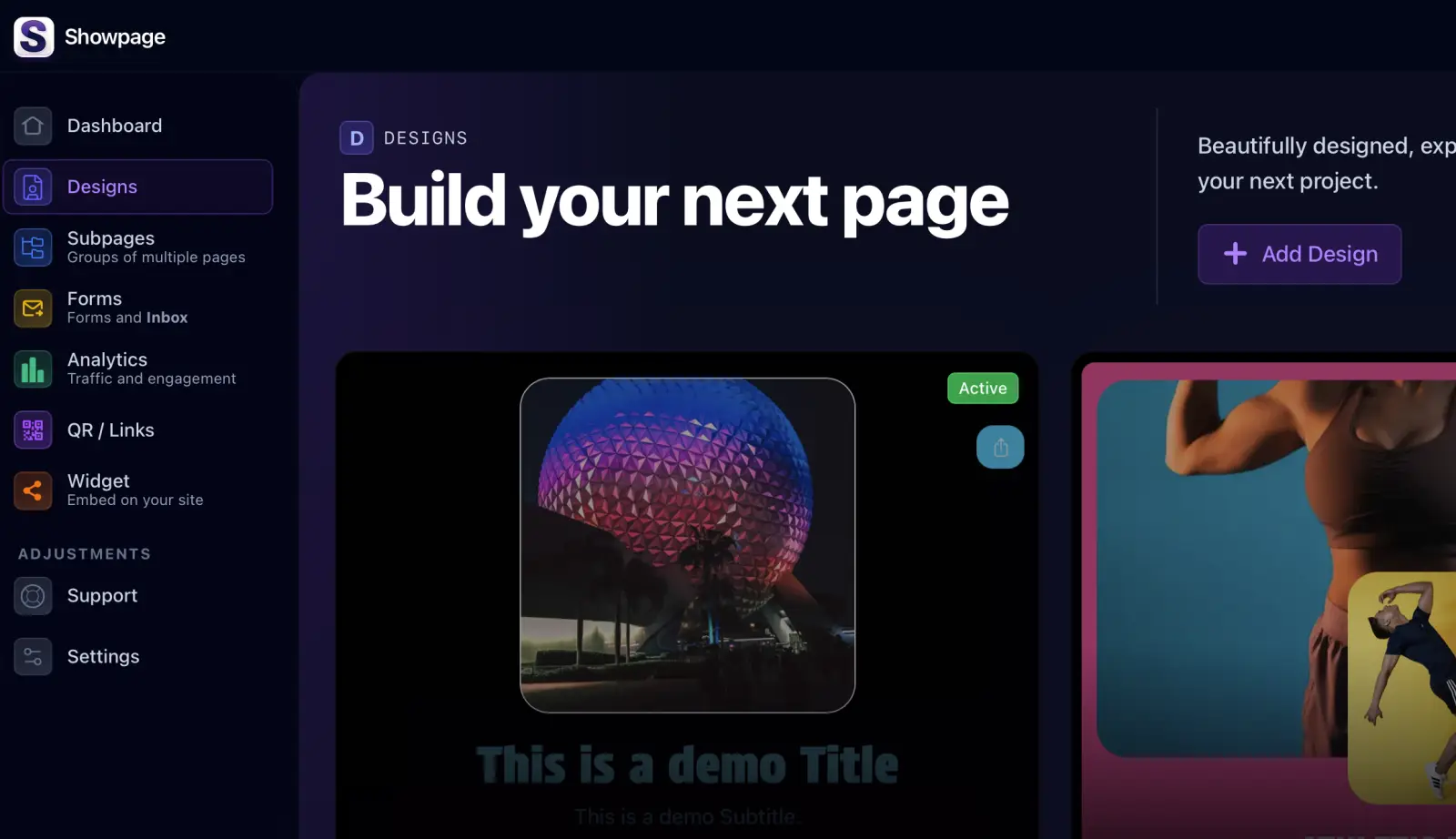
Open Designs in the sidebar. Each design shows as a card with a live preview of its current draft (not a screenshot, so it always reflects your latest edits), the name, when it was last updated and a badge:
- Active — the published design, shown first in the list.
- Inactive — saved drafts you can keep working on or publish later.
Use See to open a full preview in a new tab, or Edit to open the editor.
Create a new design
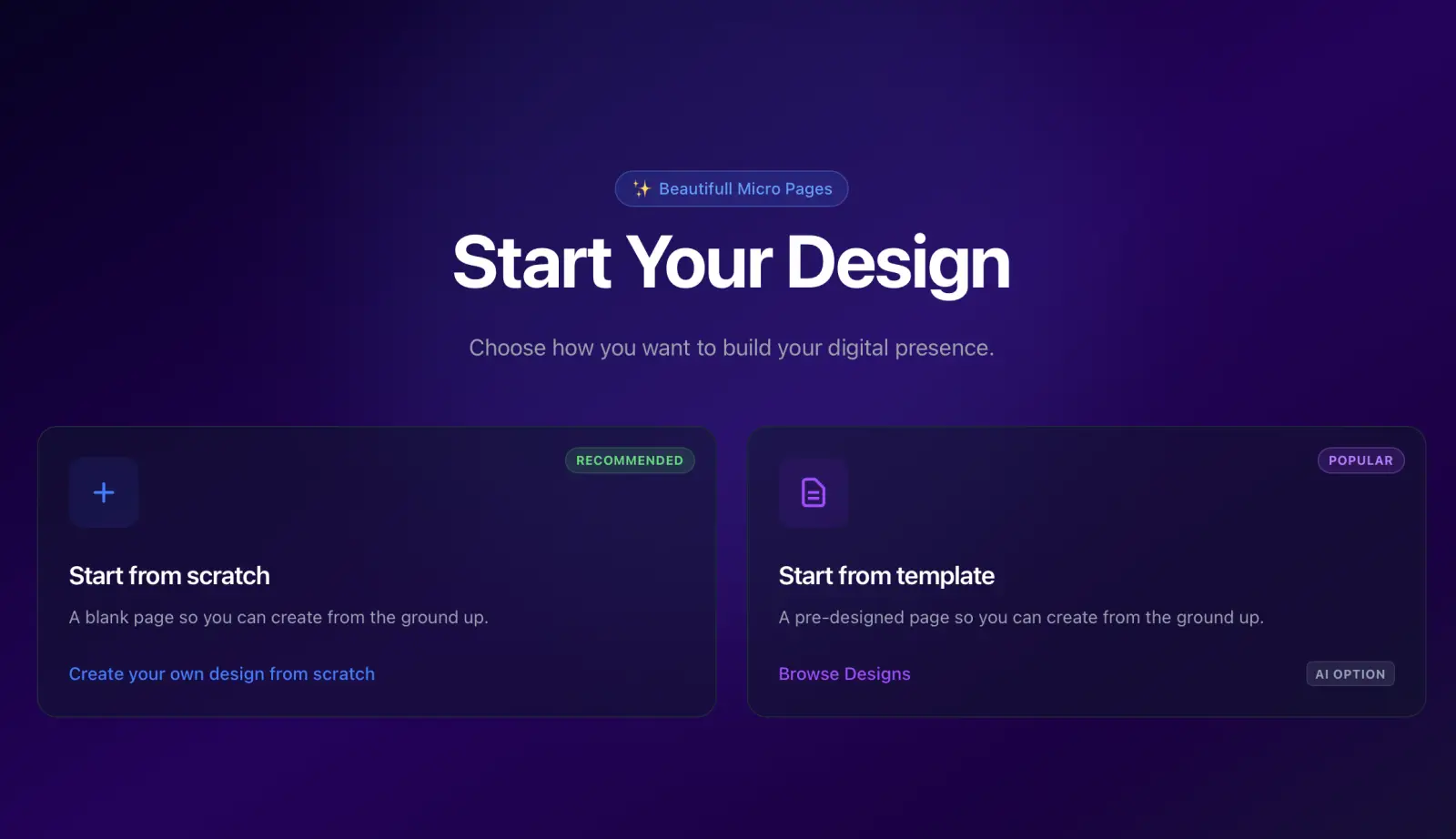
Click Add Design at the top right. A wizard opens and asks how you want to start:
- Start from scratch (recommended) — a blank page with an avatar box and your brand colors. Two steps: details and colors.
- Start from template — a pre-designed page you customize afterwards. Adds steps for social links, images, template choice and the optional AI assistant.
1. Project details
Give the design a name (only you see it; the default is "Design No. X") and, optionally, your business website. With a website set, click Import to pull the business name, description, logo and links from it, so you don't start from an empty page.
2. Brand identity
Pick a primary brand color and a theme — White, Light, Dark, Brand or Palette. The preview shows the resulting title, text and button colors. Everything here can be changed later in Settings → Colors.
3. Social links (template only)
Add the networks where customers can find you. They become a link row on the page. If you imported a website, you also get an Extracted links step to review the links we found and remove the ones you don't want.
4. Final touches (template only)
Upload your avatar or logo and choose what it sits over — page background, brand color, white or black — so the preview matches your page. You can also add additional photos for the template or the AI to use.
5. Choose template (template only)
Pick one of the ShowPage templates. Every block in it can be edited, moved or deleted afterwards.
6. AI assistant (template only, optional)
Turn on AI processing and describe what you want. The assistant looks at your uploads and website and proposes changes to the page. Nothing is applied until you tick each proposal, and each account has a monthly quota of AI generations.
Design ready
Click Open editor to start customizing. The editor has three areas — Settings, the Avatar Box and Blocks — each covered on its own page in this section.
Limits
The number of designs you can keep depends on your plan: 3 on the starter plan, up to 6 on higher plans. If you reach the limit, delete an old design (editor → Options → Delete page) before creating a new one.
The Designs page
page
- Active — the published design, shown first in the list.
- Inactive — saved drafts you can keep working on or publish later.
Use See to open a full preview in a new tab, or Edit to open the editor.
Create a new design New and more
Click Add Design at the top right. A wizard opens and asks how you want to start:
- Start from scratch (recommended) — a blank page with an avatar box and your brand colors. Two steps: details and colors.
- Start from template — a pre-designed page you customize afterwards. Adds steps for social links, images, template choice and the optional AI assistant.
1. Project details
Give the design a name (only you see it; the default is "Design No. X") and, optionally, your business website. With a website set, click Import to pull the business name, description, logo and links from it, so you don't start from an empty page.
2. Brand identity
Pick a primary brand color and a theme — White, Light, Dark, Brand or Palette. The preview shows the resulting title, text and button colors. Everything here can be changed later in Settings → Colors.
3. Social links (template only)
Add the networks where customers can find you. They become a link row on the page. If you imported a website, you also get an Extracted links step to review the links we found and remove the ones you don't want.
4. Final touches (template only)
Upload your avatar or logo and choose what it sits over — page background, brand color, white or black — so the preview matches your page. You can also add additional photos for the template or the AI to use.
5. Choose template (template only)
Pick one of the ShowPage templates. Every block in it can be edited, moved or deleted afterwards.
6. AI assistant (template only, optional)
Turn on AI processing and describe what you want. The assistant looks at your uploads and website and proposes changes to the page. Nothing is applied until you tick each proposal, and each account has a monthly quota of AI generations.
Design ready
Click Open editor to start customizing. The editor has three areas — Settings, the Avatar Box and Blocks — each covered on its own page in this section.
Limits
The number of designs you can keep depends on your plan: 3 on the starter plan, up to 6 on higher plans. If you reach the limit, delete an old design (editor → Options → Delete page) before creating a new one.
@php
$active = 'section-'.($section['id'] ?? 0);
$activePage = $docPage['id'] ?? null;
$pageTitle = $docPage['name'] ?? '';
$videoId = \App\Models\Changelog::videoId($docPage['video_code'] ?? null);
$page = ['slugs' => array_fill_keys($langs, ''), 'metatags' => ['title' => array_fill_keys($langs, $pageTitle)]];
$mainImg = $docPage['image'] ?? null;
@endphp
hola alerts
Hello card

-
Capture a request
Install the package, repeat the action, and select its exact profile.
Helllo
How much is it
| Earnings | Expending |
|---|---|
| 1000 | 100 |
| 2000 | 157 |